 User Guide
DHCP Server — install & user guide
DHCP Server is a free, self-hosted web console for the industry-standard ISC Kea DHCP engine. This guide takes you from a bare Ubuntu machine to a running dashboard with a single command, then walks through every module you'll use day to day.
What it is
One dashboard for your whole DHCP service — instead of hand-editing config files and reading logs over SSH.
Under the hood it drives ISC Kea, the modern DHCP server used by ISPs and enterprises. The GUI talks to Kea's control agent, so every change you make in the browser is applied to the live server and saved to its configuration. It runs entirely on your own machine — no cloud, no account, no cost.
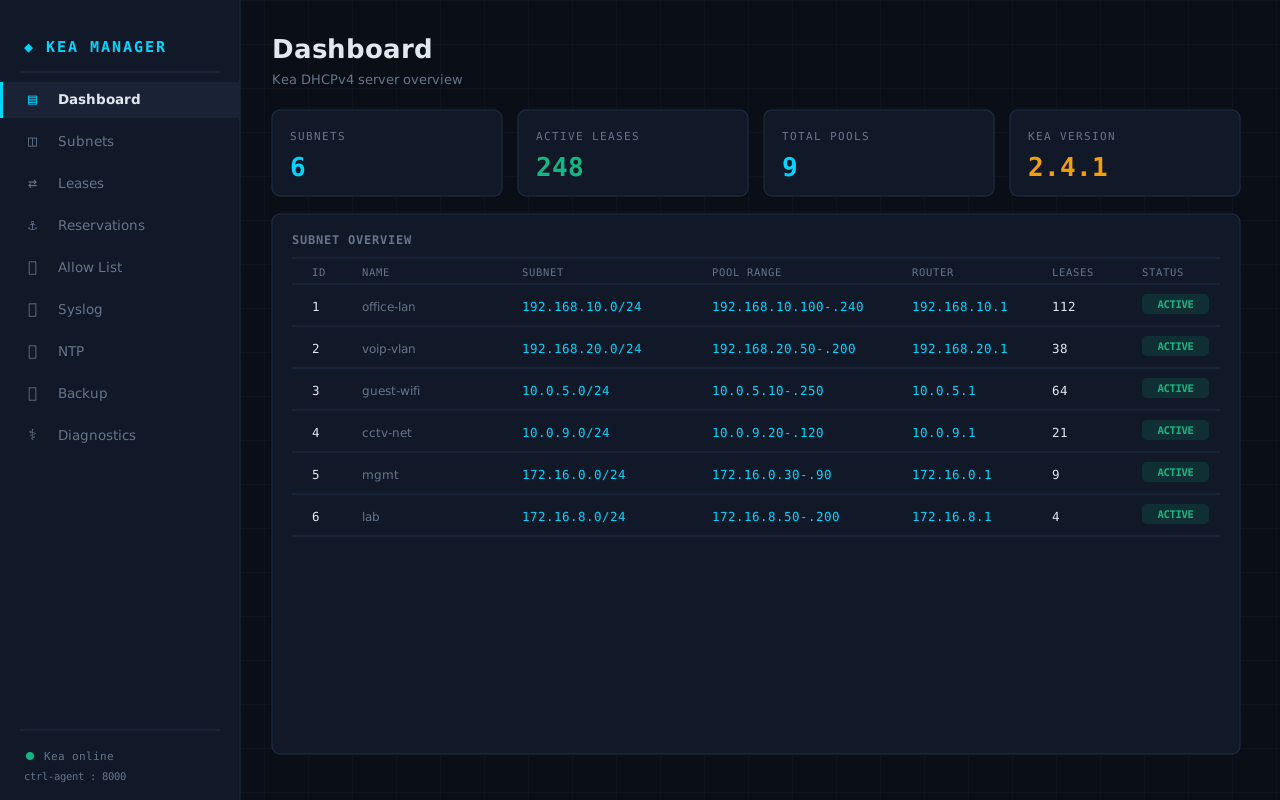
The dashboard — subnet, lease and pool counts, Kea version, and a per-subnet overview.
Before you start
You need one Ubuntu server and about three minutes. Everything else is installed for you.
| Operating system | Ubuntu 22.04 LTS or 24.04 LTS (a fresh server is ideal) |
| Access | A user with sudo / root privileges |
| Network | Outbound internet (to fetch Kea & dependencies) and a free TCP port 5000 |
| Kea, Python, etc. | Not required beforehand — the installer adds them all |
Install in one command
Copy this into your Ubuntu terminal. It downloads the package, installs Kea and every dependency, and starts the dashboard.
Run the command
Paste it and press Enter. You'll see progress as it installs Kea 2.4, writes the configuration, and enables the service.
Wait for "Installation complete"
The whole build takes about two to three minutes on a fresh server.
Open the dashboard
Browse to the address it prints — http://your-server-ip:5000.
sudo ufw allow 5000/tcpWhat gets installed
The one command sets up the full stack — you don't install Kea or Python separately.
| Component | Details |
|---|---|
| Kea DHCP 2.4 LTS | isc-kea-dhcp4-server, isc-kea-ctrl-agent, isc-kea-hooks from ISC's official repository |
| Python runtime | python3-flask, python3-requests, python3-werkzeug |
| Kea configuration | Control agent on port 8000, DHCPv4 config, command socket and lease database |
| The GUI | Encrypted application installed to /opt/kea-manager |
| System service | kea-manager on port 5000, auto-starting on every reboot |
First login
Sign in, then immediately set your own password.
| URL | http://your-server-ip:5000 |
| Username | admin |
| Password | admin123 — you'll be prompted to change it on first login |
Dashboard & modules
Nine modules cover everything you'd otherwise do by hand. Here's what each one is for.
| Module | What it does |
|---|---|
| Dashboard | Live counts of subnets, leases and pools, the Kea version, and a per-subnet overview |
| Subnets | Add / edit / delete IPv4 subnets, pools, routers, DNS and lease options |
| Leases | Search active leases by IP, MAC or hostname; release a lease |
| Reservations | Pin a fixed IP to a MAC address, per subnet |
| Allow List | Restrict console access to approved IP addresses |
| Syslog | Forward DHCP events to a remote syslog server (with a test button) |
| NTP | Configure the server's time source |
| Backup / Restore | Download a full Kea config snapshot and restore it later |
| Diagnostics | Health-check Kea, the control agent and sockets; pinpoint failures |
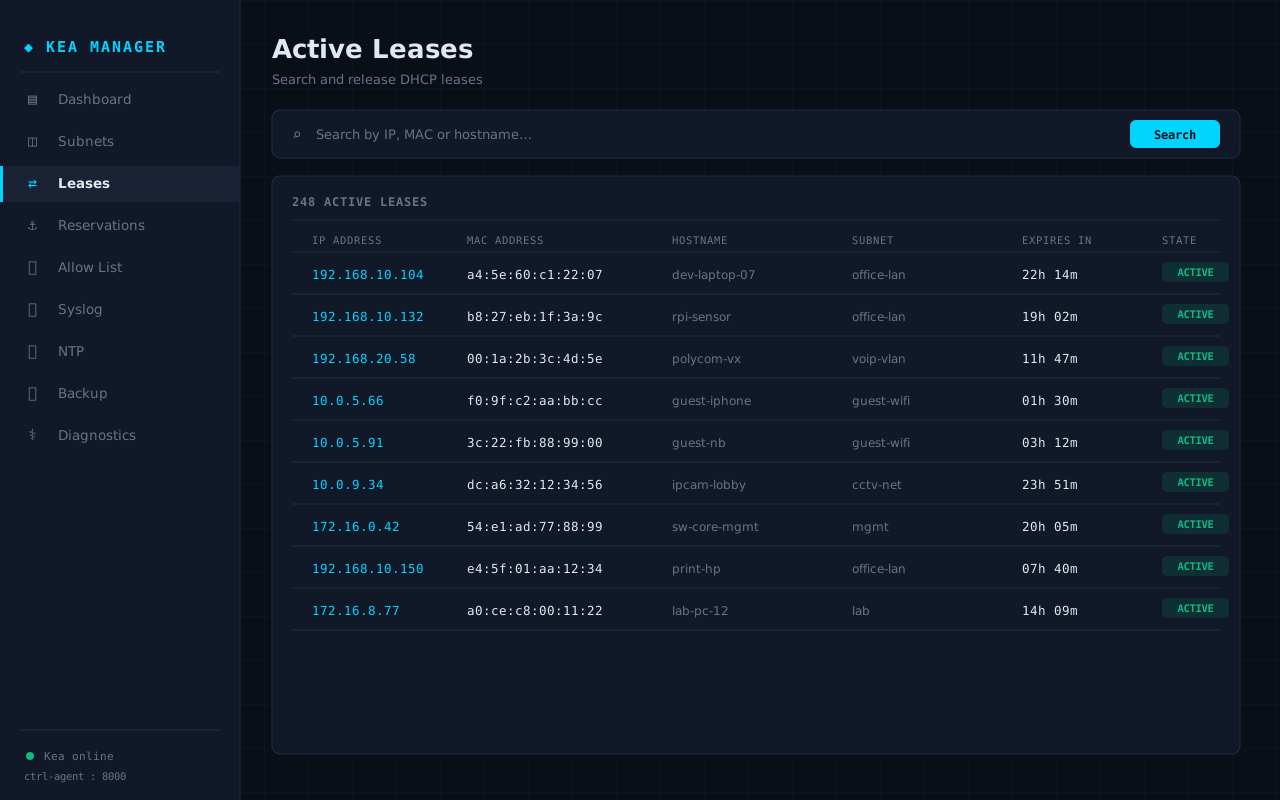
Active Leases — search and release.
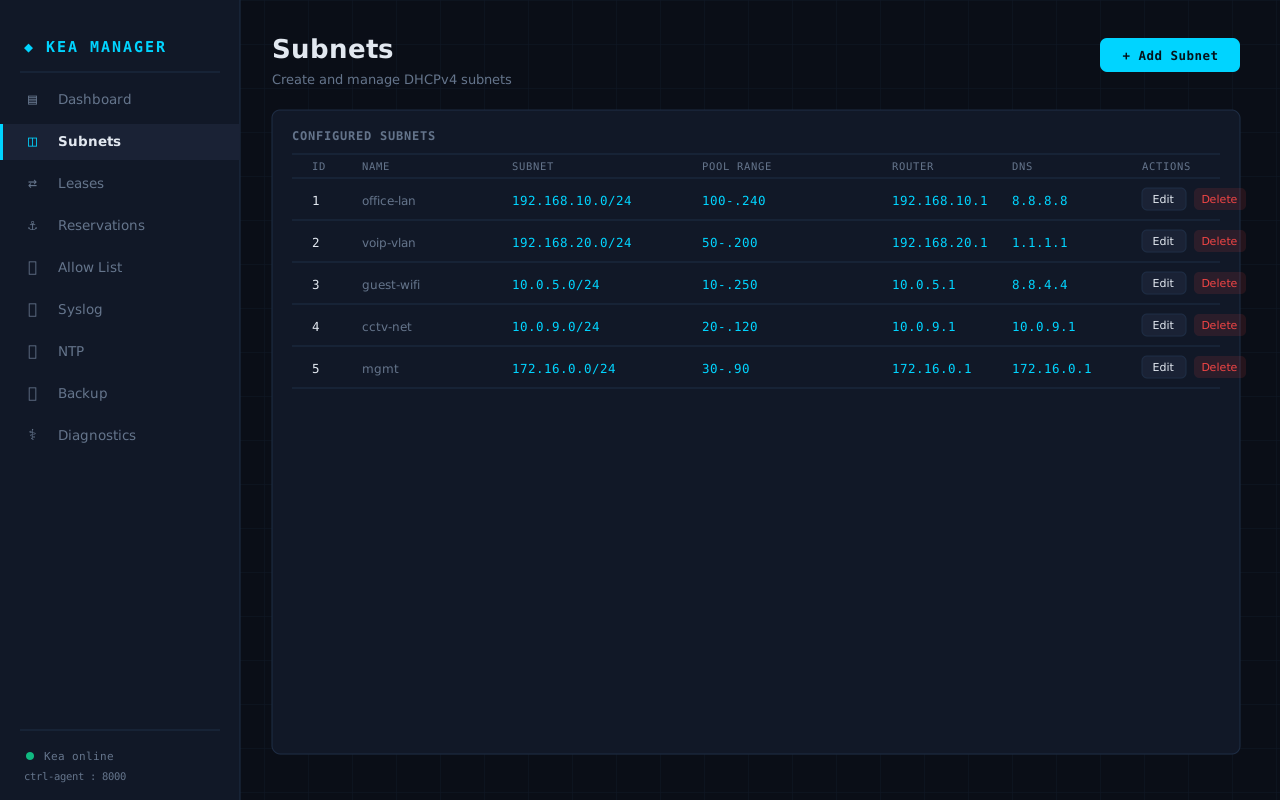
Subnets — pools, routers and DNS.
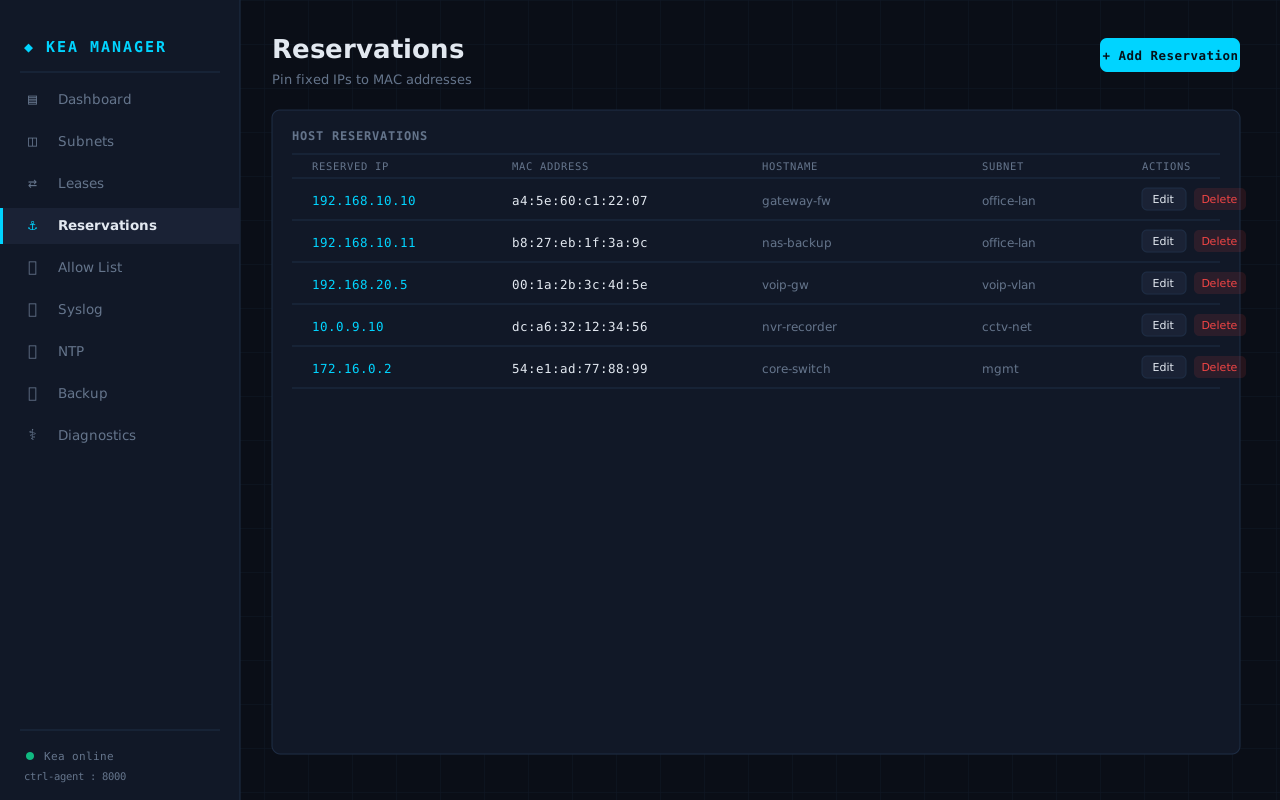
Reservations — fixed IP per MAC.
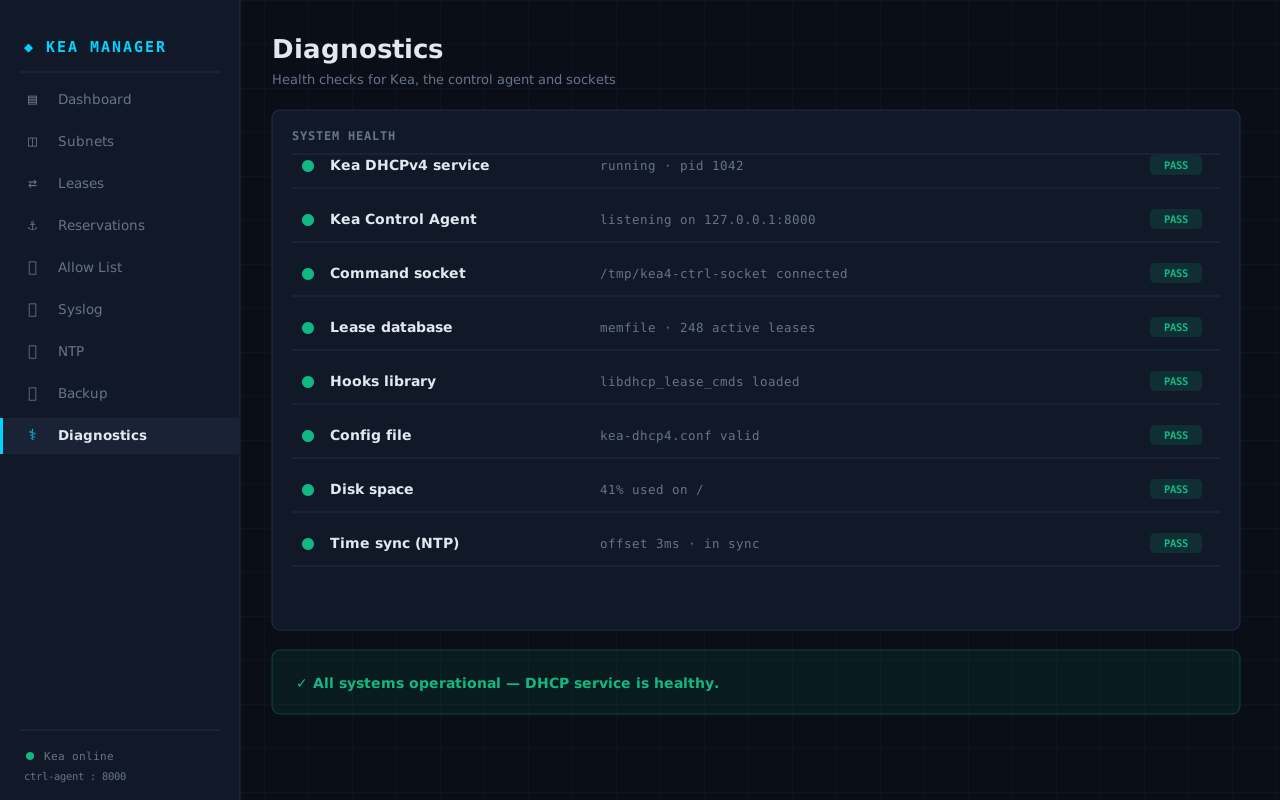
Diagnostics — one-page health check.
Managing the service
The GUI runs as a normal systemd service. Handy commands:
The Kea DHCP engine itself:
Encrypted deployment
This part is for whoever hosts the installer — how the single command above is built and served.
The client-side code is shipped obfuscated with PyArmor: the Python source and its string literals are encrypted and only decrypted in memory at run time, so an end user can't read, copy or edit the application. Building and publishing is a two-step flow on an Ubuntu machine:
Troubleshooting
Quick fixes for the things that occasionally go wrong.
| Symptom | Fix |
|---|---|
| Dashboard won't load | Check the service: sudo journalctl -u kea-manager -n 50, then open the in-app Diagnostics page |
| Can't reach port 5000 | Open the firewall: sudo ufw allow 5000/tcp |
| "Active Leases" is empty | Install the hooks: sudo apt-get install -y isc-kea-hooks then restart Kea |
| Locked out by the Allow List | Access from the server itself (localhost is always allowed) and remove your rule |
| Forgot the admin password | Delete /opt/kea-manager/gui_auth.json and restart the service to reset to defaults |
Getting help
We build and support this ourselves — reach out any time.